
Update an Existing Site
This page covers manual updates. For scheduled syncing, see Automatic Updates. Updates reuse your Repository Secrets and Cloudflare resources.
1. Sync the Code
- Open the deployment fork's
Codepage and select the default branch. - Push custom commits to a backup branch if you have modified the source.
- Click
Sync fork → Update branch. - Wait until GitHub reports that the branch is up to date.
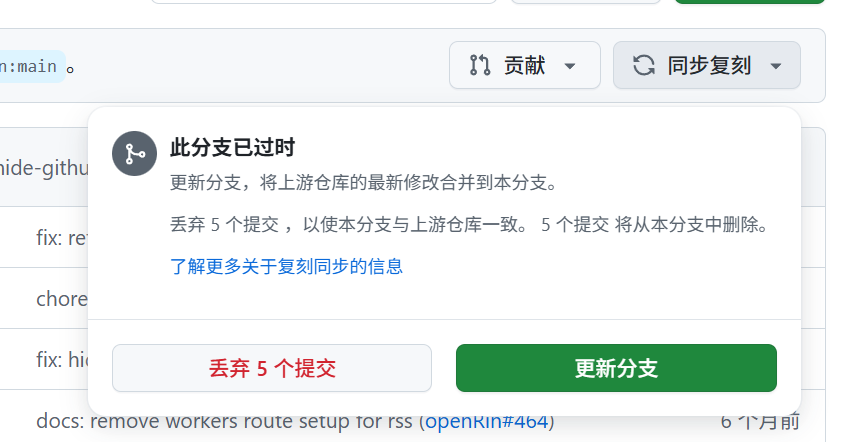
The screenshot's warning about discarding five commits means those commits will be removed from the current branch. To keep custom changes or resolve conflicts, merge upstream with Git instead.
2. Confirm Deployment
- Open
Actions → 00 Deploy Worker. - Confirm that the run matches the synced commit and wait for success.
- If no run starts, click
Run workflowto start one manually.
Leave apply_encryption_keyring and rotate_encryption_key unchecked for normal updates. The workflow migrates and verifies D1 before deploying the Worker and keeps existing encryption keys.
3. Check the Site
- Sign in and test message delivery.
- Click Check for updates in the Site appearance update section.
- Run a self-check under Installation & Maintenance.
Message retention is configured separately under Site Configuration.
No Sync Fork Button
The button appears only in GitHub forks. For a regular clone, fetch and merge upstream using Git. For a new deployment, fork the repository using Getting Started.